# Typography
In the typography settings, you can customize the font family for your **Headings** and **Body** text by selecting your preferred font. You can choose from **two types of fonts: Shopify fonts**, available in the **Customizer**, or **Google Fonts**, which can be searched and embedded directly from **Google**.
In Shopify, you can customize the typography settings to match your store's branding.
{% hint style="success" %}
**Step 1** : From your Shopify admin, go to **Online Store > Themes**.
**Step 2** : Find the theme that you want to **Edit and Click Customize.**
**Step 3** : Click **Theme Settings.**
**Step 4 :** Go to **Theme Settings > Typography**
{% endhint %}
### **Shopify fonts:**
Select Font from the customizer drop and select the required font for heading and body respectively.
{% hint style="info" %}
Both the **Body font and Heading font** can be customized by following these steps.
{% endhint %}
**Google fonts:**
{% hint style="success" %}
* **Visit Google Fonts**: Go to [Google Fonts](https://fonts.google.com/) and select your desired font.
* **Choose Styles**: Pick the styles you need (e.g., Regular, Bold).
* **Copy Embed Code**: Under the "Embed" section, copy the `` code from the "Standard" tab.
* **Add to Shopify**:
* Go to **Online Store** > **Themes** > **Customize** > **Theme Settings**.
* Paste the embed code into the **Custom Heading Font** or **Body Font** box.
* **Save Changes**: Apply the changes to update the font across your store.
{% endhint %}
### **Additional fonts:**
* For subheadings or other text, you can use **Google Fonts** or **Shopify Fonts**.
* Follow the steps to embed the desired font in **Theme Settings**, selecting the text section you want to apply it to.
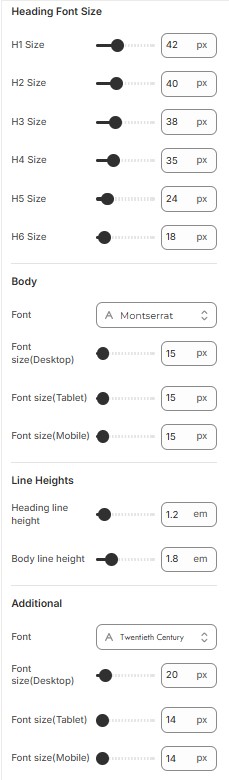
### Customize your font sizes
* You can set the default font sizes for your headings and body text with the Typography theme setting.
* **Heading font size :** There are six types of headings, H1 to H6, which can be adjusted as per the theme requirements.
* **Body (Font size) :** Adjustment of body fontsize of **Desktop ,Tablet and Mobile** can be done as per theme requirements.
* **Line height:** It use to adjust the line height of heading and body fonts.
* **Additional Font size:** Adjustment of additional fontsize of **Desktop , Tablet and Mobile** can be done as per theme requirements.
### **Custom Font Script**
* Google Font using custom font (eg., @import url('');)
### **Custom font**
* Google Font using custom font (eg., 'Fredoka One', cursive;)
.png)